
Introduction
Sbling defines how the Platform JAAK combines the result of each step of a session KYC (face check, liveness detection, document, list) at an end score. Adjustments > KYC > Fine-tuning you can review and adjust that configuration for your company without changing code.
Who can use them: users with role Owner or Administrator of an undertaking with Fine-tuning enabled. If you do not see the option, ask JAAK That activates Fine-tuning for his account.
How to enable
- JAAK Fine-tuning for your company. Your company cannot activate them by its own means: put them at your contact with JAAK or support. JAAK later, its saved values are preserved and continue to apply and only stop viewing the tab.
- Enter with an Owner user or Administrator. Other roles don't see the tab.
- Open Adjustments > KYC > Fine-tuning. If the tab doesn't appear, check the previous two points or login and get back in.
The values shown by Section Sbling defines them JAAK for your account. You can set those that do not appear as Gestified by JAAK (see below). To change a managed value, solicate to JAAK.
Open the configuration
- login at Platform JAAK.
- Enter Adjustments.
- At the menu on the left, inside the group KYCselect Fine-tuning.
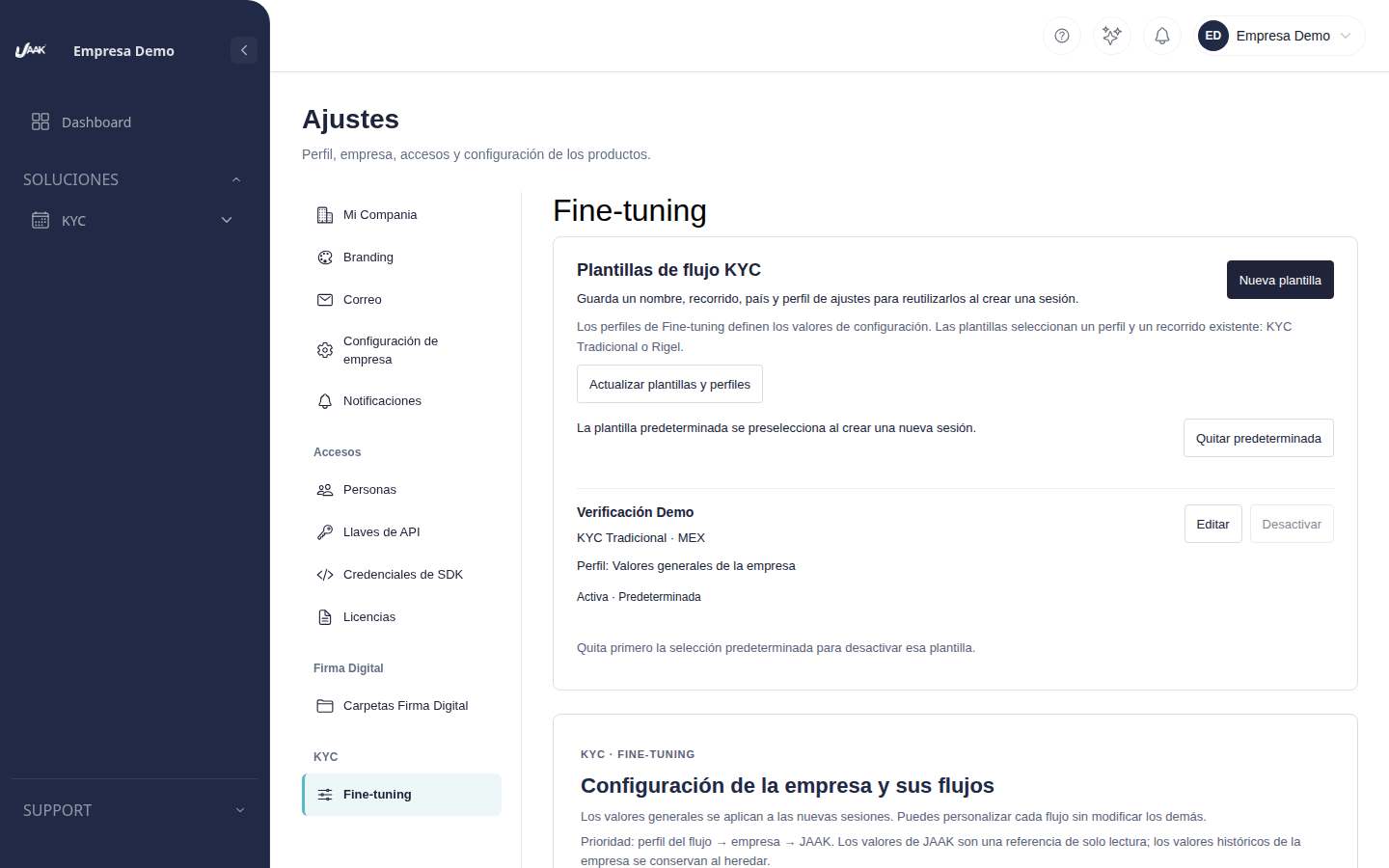
The menu at the left and the contents at the right are moved independently: you can conduct the whole configuration without losing the viewing menu.
Sbling Setup KYC
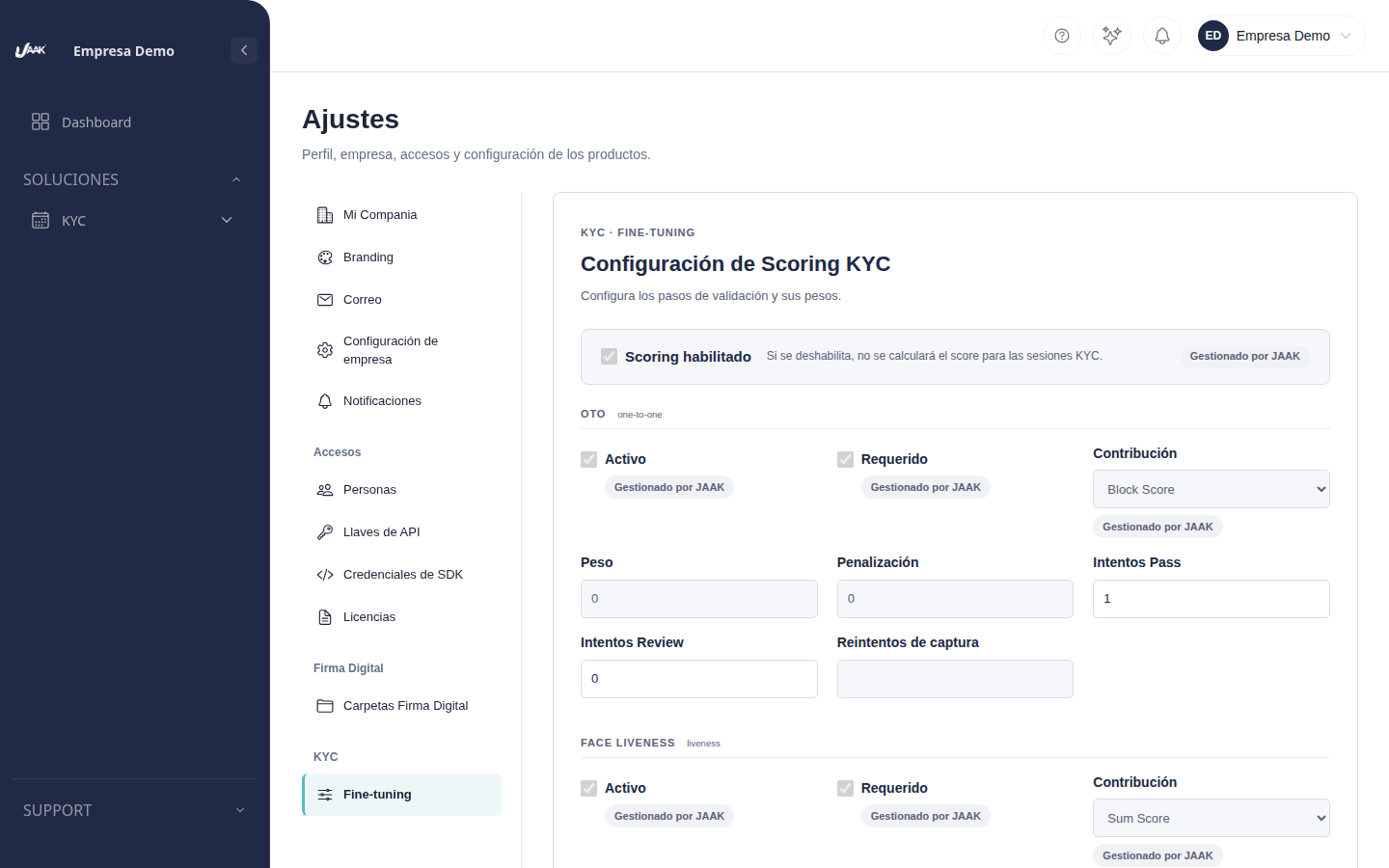
Scroll to Section SblingHe'll find his card. Sbling Setup KYC with:
- Scoring enabled: indicates whether the score of sessions is computed KYC.
- One block by step (for example, * OTO *, * FACE LIVENESS *, * DOCUMENT LIVENESS *, * BLackLIST ) with boxes Assets and Requiredhis type of contribution ( Block Score * or * Sum Score *) and its thresholds and weights.
What your company can change: Sbling enabledand Weight, Criminalizationand Pass attempts and Attempts Review and the three monitoring measures for each step closed eyes FACE LIVENESS. Other fields (Assets and Required from the security steps, Contribution and Reattempts to capture) appear with the label Gestified by JAAK: you can consult them but only JAAK modifies them. If you need to change them, select them to JAAK.
Customize and Wound
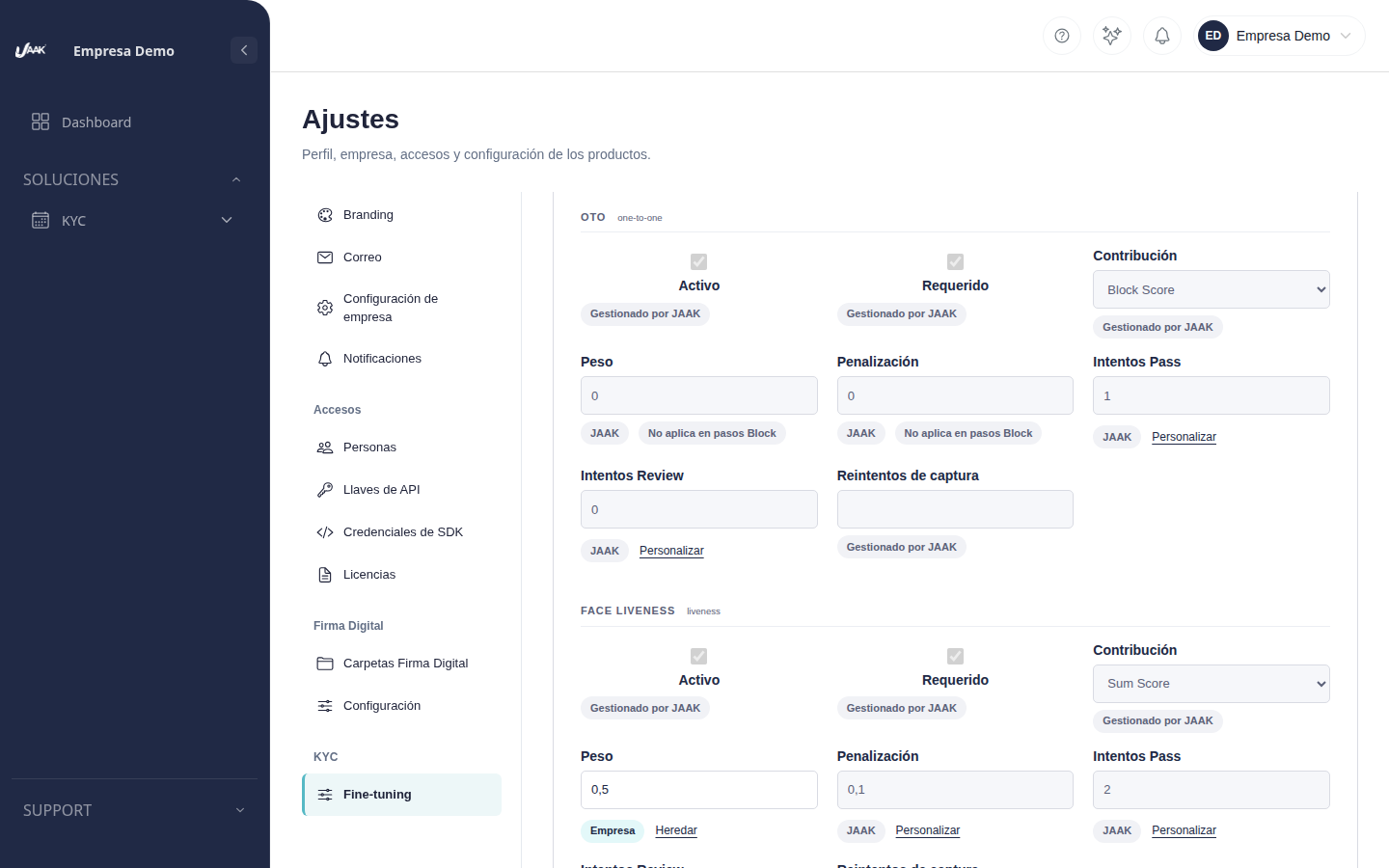
Each field shows its origin: JAAK if you are using JAAKor Company if his company personalised him.
- Customize enabling the field to write its own value.
- Beer removes its value and re-shows the JAAK. JAAK update that value later, your company will get it automatically.
At the type steps Block Score (e.g. * OTO *), Weight and Criminalization show Do not apply in Block steps: A Block step doesn't add up to the score but leaves it at 0 if it fails, so these fields cannot be customized.
Deactivate scouting
If you personalize Sbling enabled and deactivates and sessions KYC are still complete with the steps Assets and RequiredThe score will only stop.
At the end, press SaveIf another person modified his configuration while you were editing it, you will see the notice * "Other person changed his configuration. Retract before saving." *, so as to avoid overwriting his changes.
Eyes closed at liveness detection
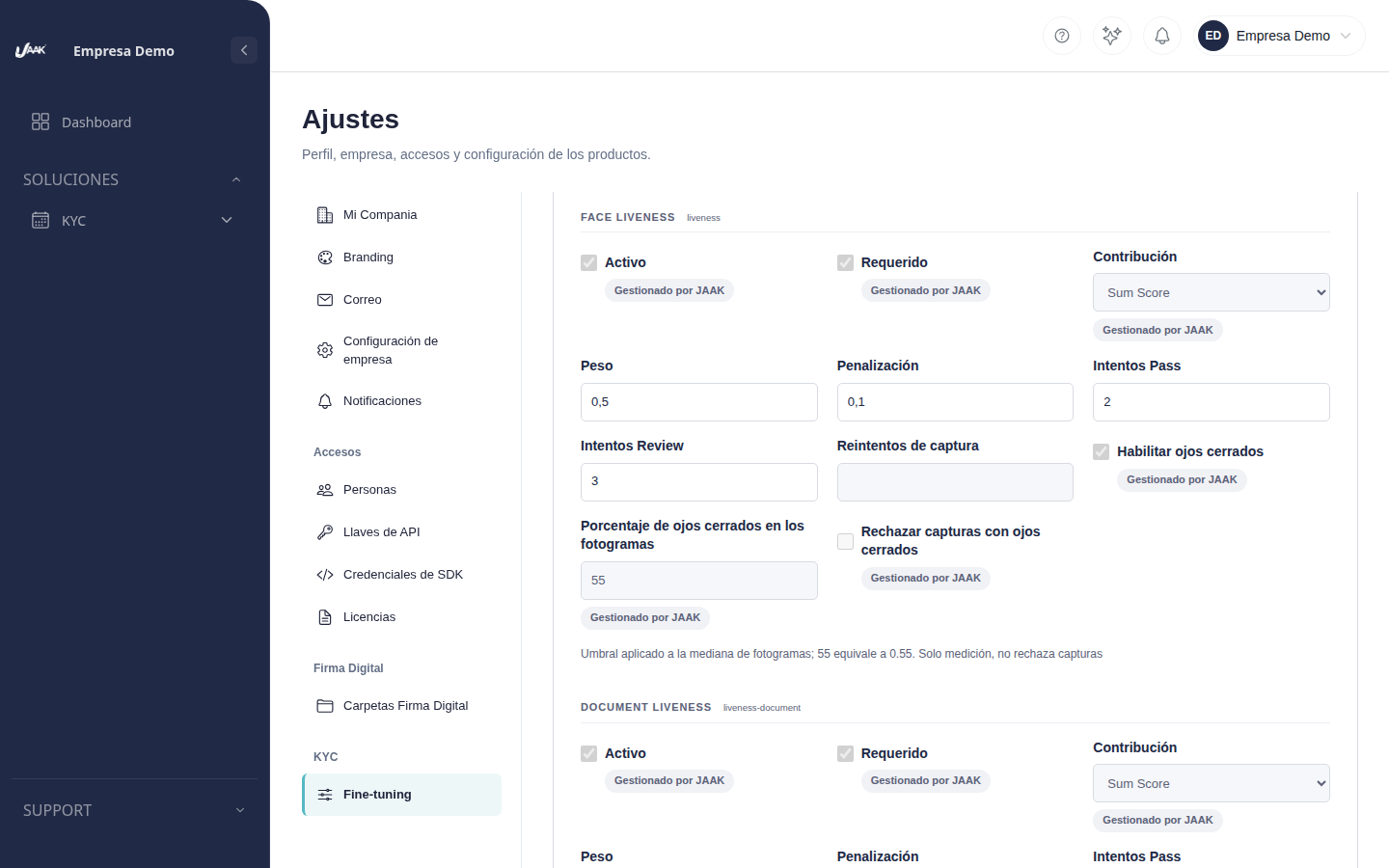
At step block FACE LIVENESS have all three monitoring of closed-eye detection. Your company can set them as other values: Customize at each, change the value and press Savewith Beer back to the value of JAAK.
- Enabling closed eyes: activates the monitoring of closed eyes at the liveness detection.
- Percentage of closed eyes in frames (1 to 100): threshold applying to the median of the frames analysed, for example 55 amounting to 0.55.
- Reject catches with closed eyes: Can only be marked if Enabling closed eyes It's activated (as soon as it's disabled, it's broken). If it's marked, a capture above the threshold will be rejected with the code LV11 and the person can repeat it. If it isn't marked, the result will only be measured and doesn't reject capture.
If their integration consumes API of Liveness detection, a capture rejected by closed eyes responded HTTP 400 with errorCode LV11 and message * "Eyes closed detected: keep your eyes open and record again" *. Ask the person to repeat his capture with his or her eyes open.
Important: biometric rejection by closed eyes **He's still not active.**Today you can save the configuration and it's preserved, but catches aren't still measured and rejected by closed eyes. JAAK notify them as soon as the detection is activated.
From his cell phone
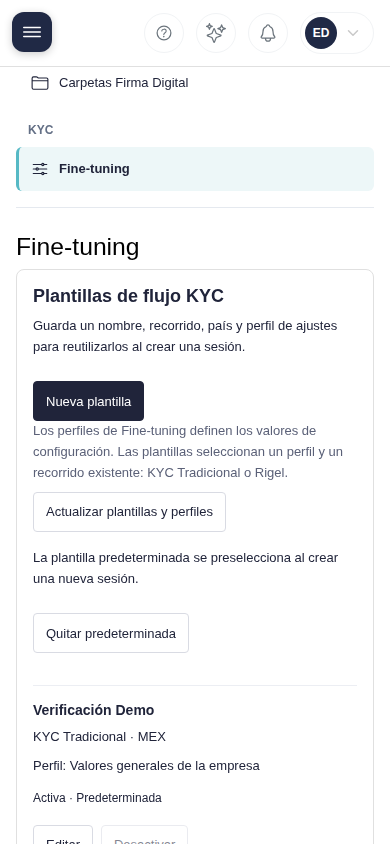
On small screens the menu is shown above and the contents are shown under with a single vertical displacement.
FAQ
I don't see the Fine-tuning option. Check that your user is Owner or Administrator and that JAAK have enabled Fine-tuning for your company.
I can't edit a field. If shown Gestified by JAAK, JAAK and can be modified, but only to JAAKIf all fields appear disabled, your user can have read-only access.