
Access Platform in 5 steps
When his organisation gives him his name JAAK Platform, you get an invitation by email to create your password. The complete process takes less than two minutes:
- Get an invitation mail.
- Click Create my password.
- Define his password.
- Just sign in.
- Enter dashboard.
Step 1: get an invitation mail
The invitation goes to his working mail with the matter "They invited you to JAAK: create your password ".
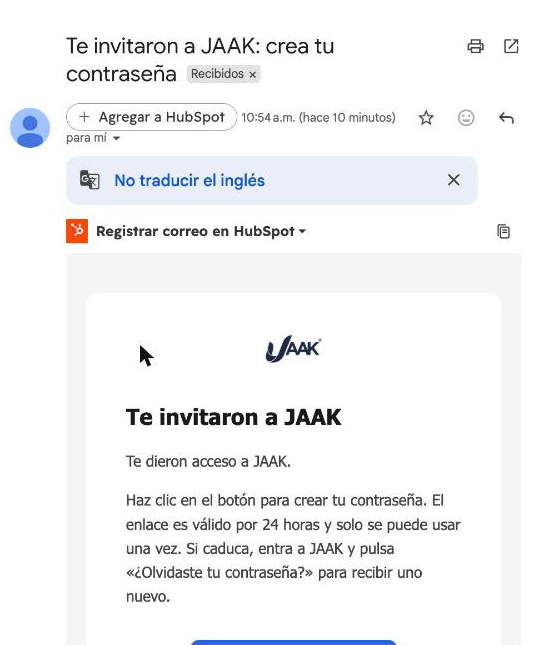
Can't you see the mail?
Also check the folders from Spam or Promotions.
Step 2: Click "Create My Password"
Open the mail and click the button Create my password.
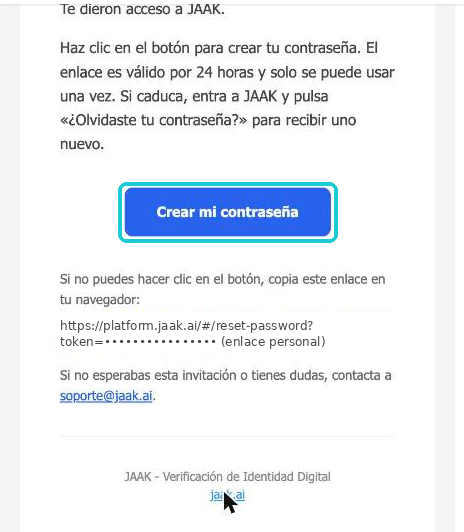
The link expires in 24 hours
The link's valid for 24 hours and can only be used once. If the button doesn't open, copies the link that appears in the email and pat it into your browser's address bar.
Step 3: Define your password
On the form Reset Password:
- Write your password into the field New password.
- Review Consign Password.
- Click Updating Password.
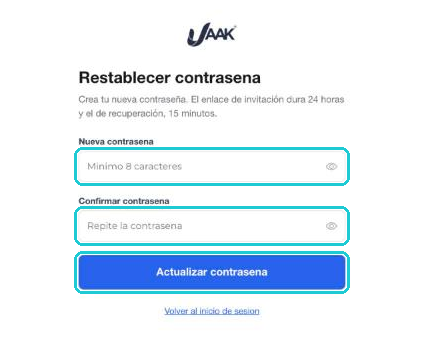
Password requirements:
| Requirement | Detail |
|---|---|
| Length | Minimum 8 characters |
| Letters | At least a capital and a minor |
| Numbers | At least one number |
| Symbols | At least a special symbol |
Step 4: login
Enter https://platform.jaak.ai, write your email and your new password, and click To login secure.
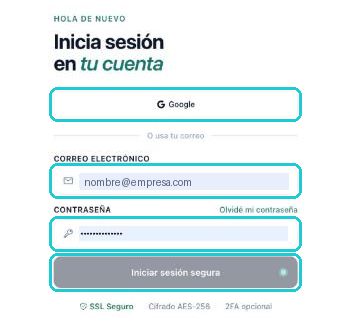
Access with Google
If your account is from Google, you can also sign up with the button Google.
For details of Sandbox and Productive environments, see First sitting.
Step 5: Enter the dashboard of Platform
At login you will see your account summary:
- Main KPIs and Secondary KPIs his checks.
- The side menu with the solutions Digital signature, KYC and Tools.
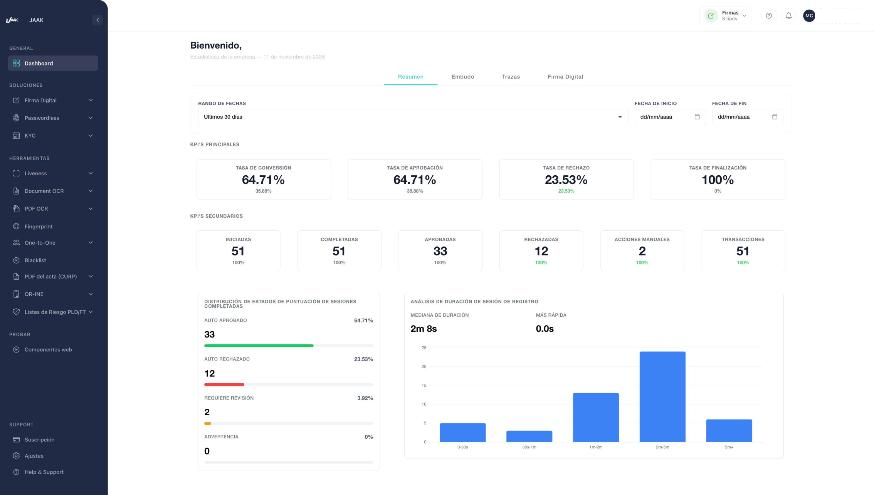
His name appears at the upper right corner and from there you can also sign up.
To figure out what you can do from dashboard, check Platform JAAK.
If something doesn't work
| Status | What to do |
|---|---|
| The link has expired | Go to platform.jaak.ai and click Forgot my password to receive a new link. The recovery link lasts 15 minutes. |
| I wasn't expecting an invitation. | Do not continue and write to support. |
| Needs access | On the login screen, use Requests access. |
Support
If the problem persists, write to support with his email, an error capture and his browser.