Create template
Create a signing template from a PDF contract. The AI reads the contract, proposes the signers and places the signature fields. Then you ask for changes in the chat until the template is right. Finally, you save the template and send it for signature.
PDF requirements
The PDF must have a text layer. A scanned PDF with no selectable text is not accepted. In that case use the manual editor.
What the AI does not change
The AI never changes the legal text of the contract. It only proposes signers and fields. If the contract has no room for signatures, it asks before it adds a signature page.
1. Open Create template
- Open Plantillas (Templates) in Signa.
- Click the Crear plantilla button (Create template), at the top right of the screen.
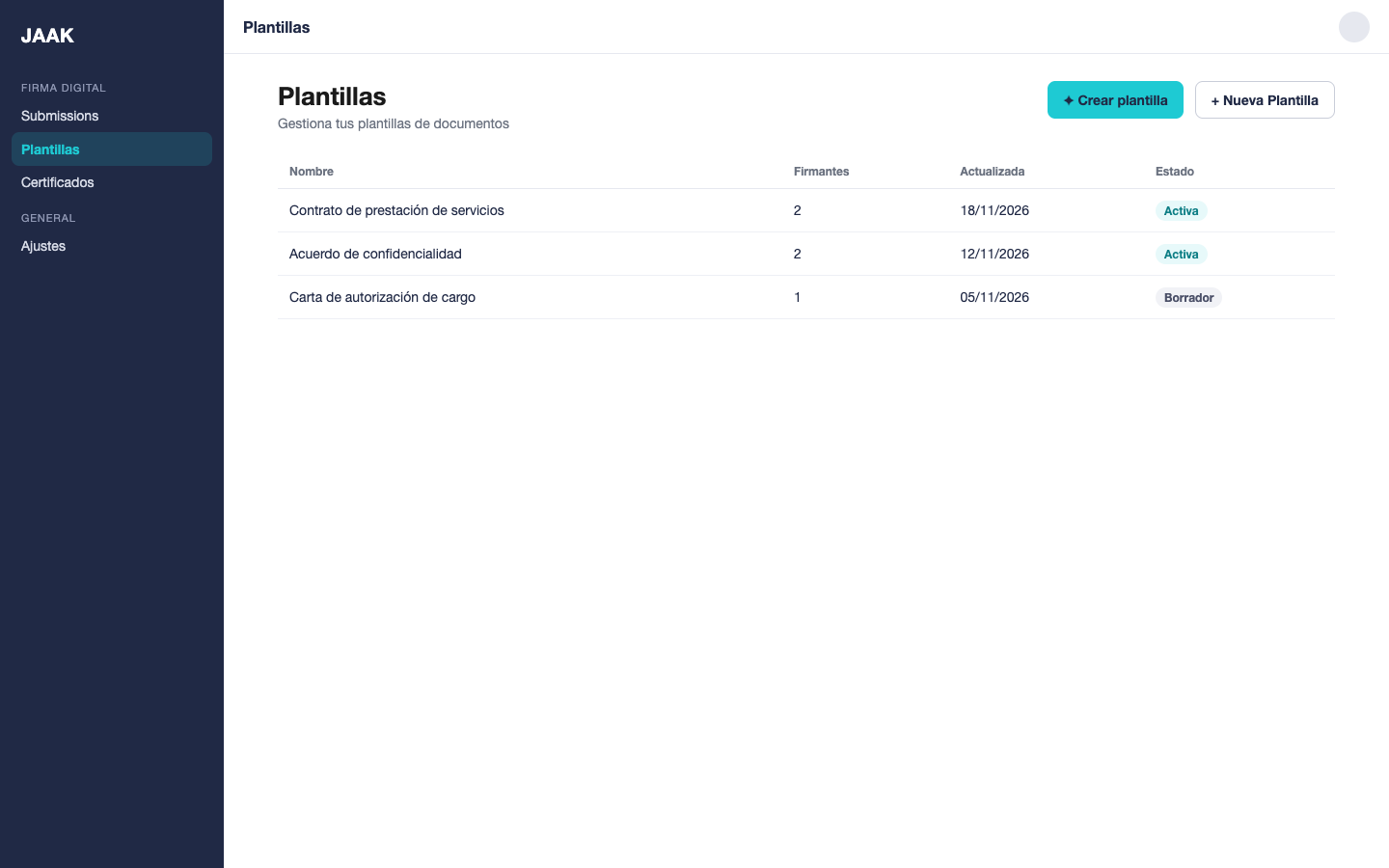
The interface labels are in Spanish. The English meaning is in brackets.
2. Upload the contract
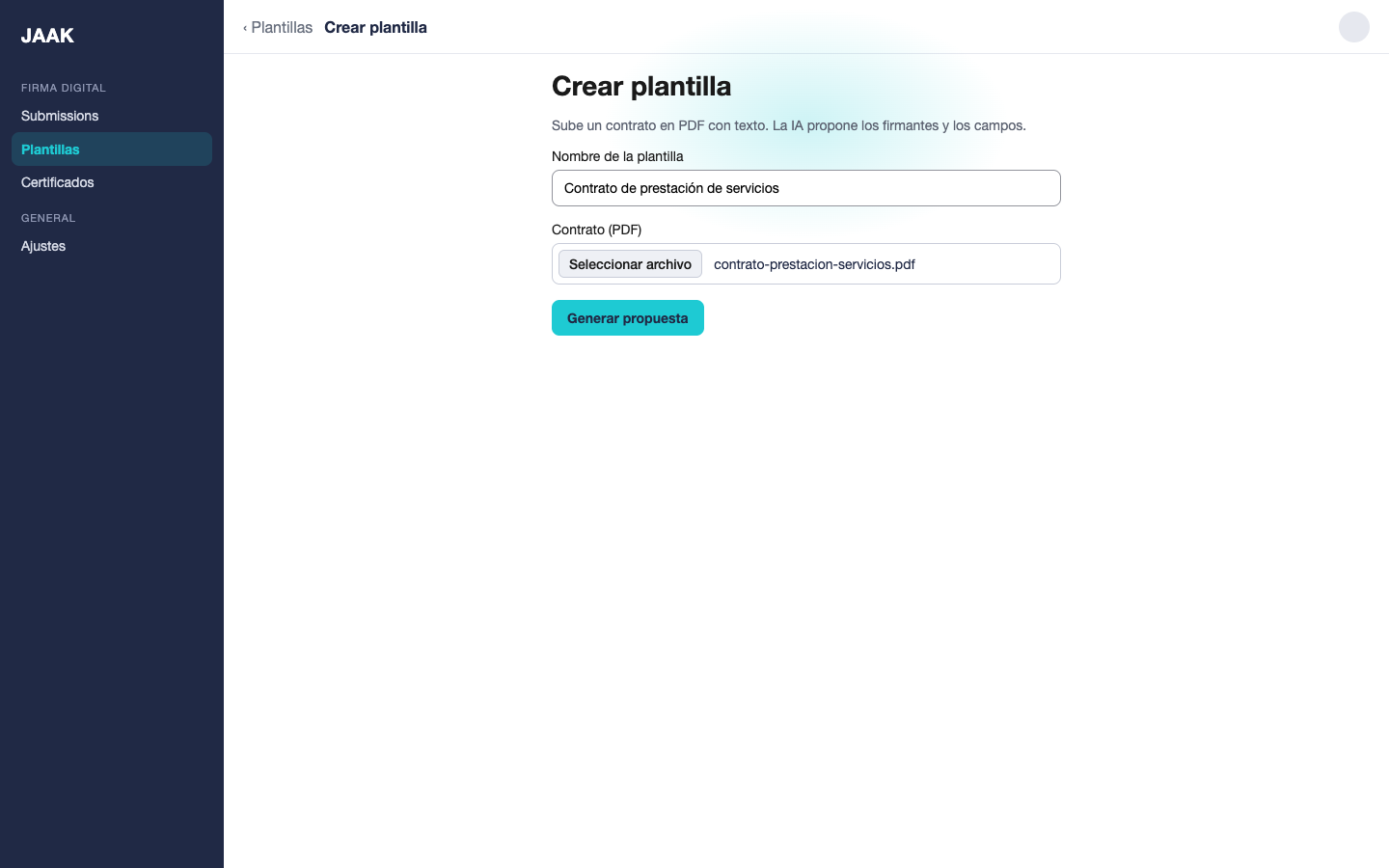
- Type the Nombre de la plantilla (template name).
- In Contrato (PDF) (contract), choose the PDF file.
- Click Generar propuesta (Generate proposal).
If the name or the file is missing, the button does not start the generation.
3. Wait for the proposal
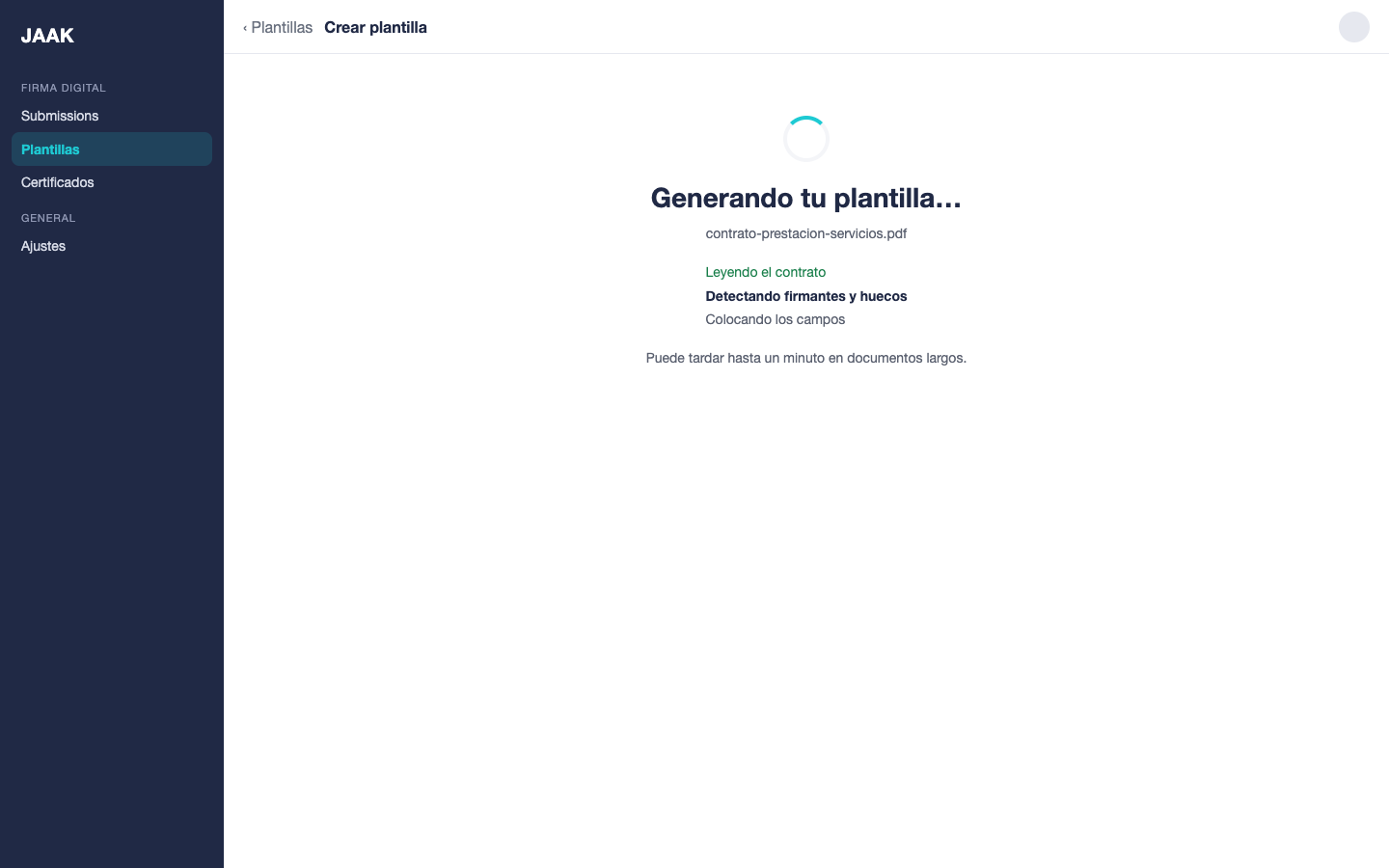
The screen shows Generando tu plantilla… (Generating your template…) and the file name. It shows three steps:
- Reading the contract
- Detecting signers and blanks
- Placing the fields
The steps are a visual indicator only. The real time depends on the server.
Waiting time
A long document can take up to one minute. If you leave the screen, you can open the proposal again. See section 6.
When the AI finishes, the screen changes to the proposal.
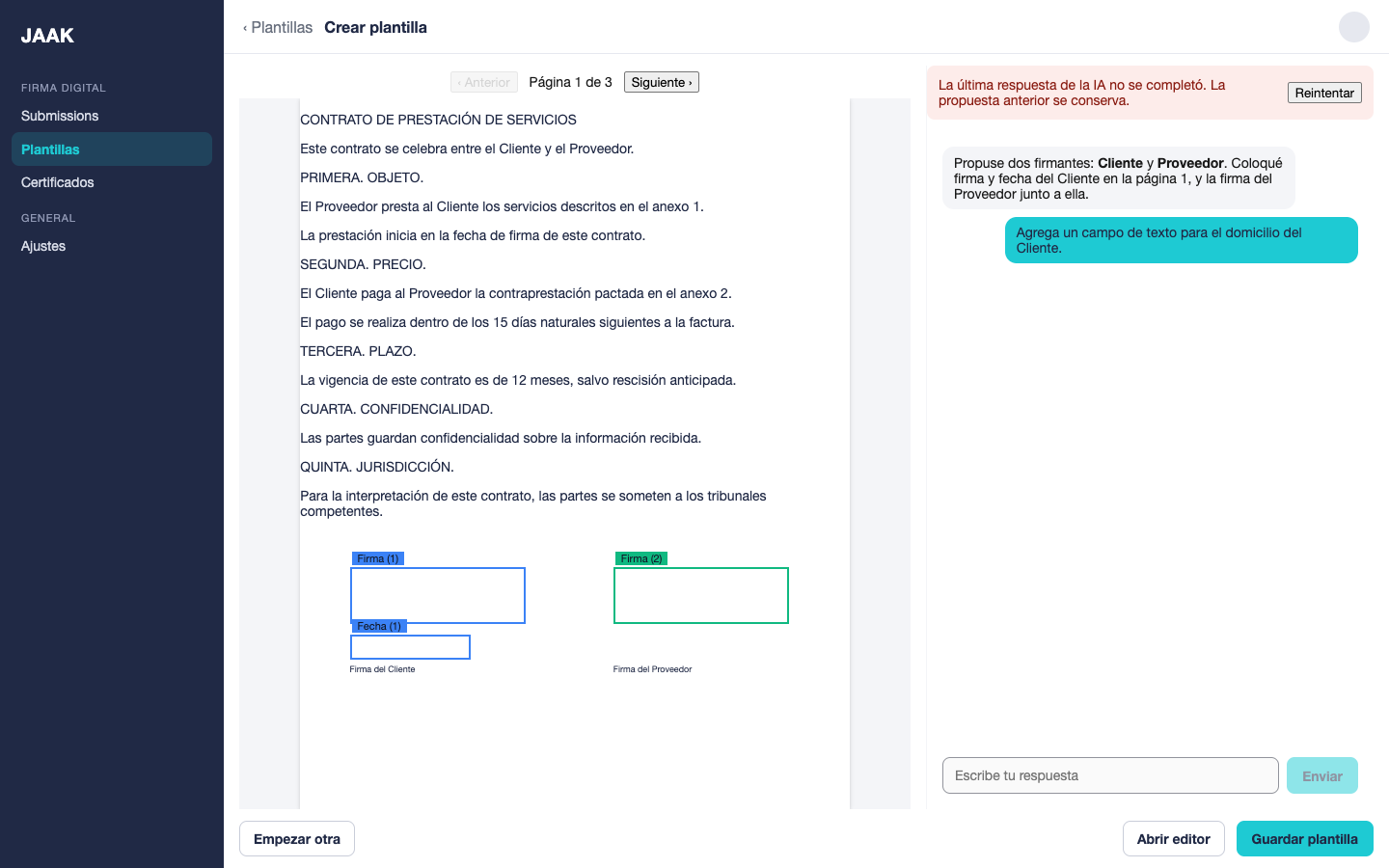
4. Review the proposal
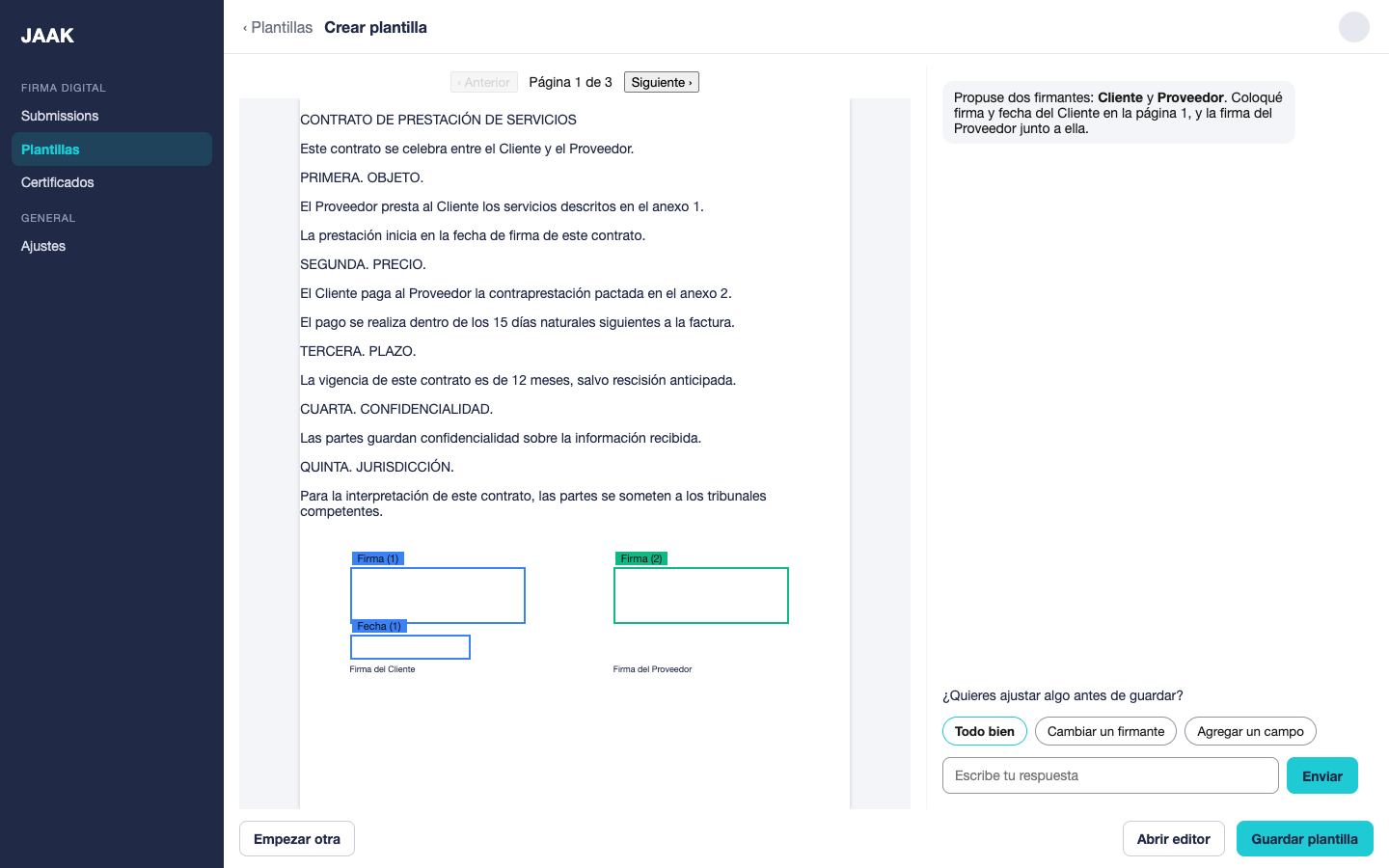
The proposal has two columns:
- Left: the PDF of the contract. Use ‹ Anterior (Previous) and Siguiente › (Next) to change pages. The indicator shows Página X de N (Page X of N).
- Right: the chat with the AI.
Coloured boxes appear on the PDF. Each box is a field:
- The type is Firma (signature), Iniciales (initials), Texto (text) or Fecha (date). Each field has a number, for example Firma (1) and Firma (2).
- The colour shows the signer. The first signer in the proposal is blue. The second signer is green.
While the AI works, the PDF shows a loading frame and the chat shows Pensando… (Thinking…).
5. Ask for changes in the chat
The chat has three parts:
- Messages from the AI and from you.
- Quick replies. If the AI asks a question, buttons appear with the answers. The suggested option has a highlighted border.
- Text field. Type your answer in Escribe tu respuesta (Type your answer) and click Enviar (Send).
Ask for one change per message. This way you can check each result before you ask for the next one.
Examples of requests:
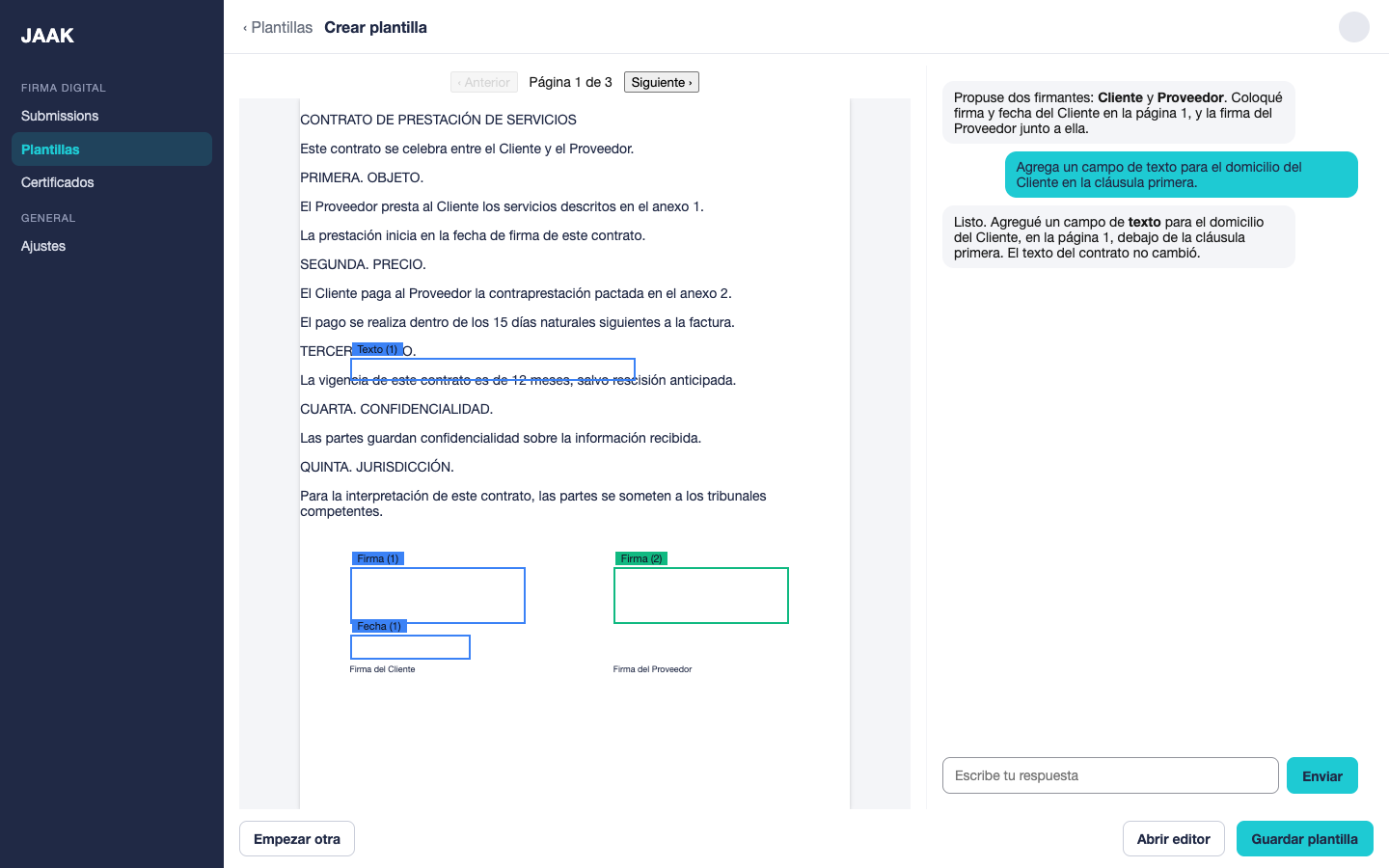
- "Agrega un campo de texto para el domicilio del Cliente en la cláusula primera." (Add a text field for the Cliente's address in the first clause.)
- "Cambia la fecha de firma a la página 2." (Move the signing date to page 2.)
- "Agrega la firma del Proveedor junto a la del Cliente." (Add the Proveedor's signature next to the Cliente's signature.)
When the AI replies, the proposal updates. The PDF shows the new fields.
If the contract has no room to sign
If the contract has no room for the signatures, the AI asks you before it adds a signature page. This feature depends on an option for your company. The option is off by default.
6. Leave and come back
The proposal stays in progress when you leave the screen.
- The browser remembers the session in progress. When you click Crear plantilla again, the same proposal opens.
- The memory is per browser. It does not appear in another browser or on another device.
- If the session was already saved as a template, Crear plantilla opens a new form.
7. Start another proposal
Click Empezar otra (Start over), at the bottom of the screen. The upload form opens. The proposal in progress no longer shows in this browser.
8. Save the template
At the bottom of the proposal there are three buttons:
| Button | What it does |
|---|---|
| Empezar otra (Start over) | Opens a new form. It does not save the template. |
| Abrir editor (Open editor) | Saves the template and opens it in the editor for manual changes. |
| Guardar plantilla (Save template) | Saves the template and opens the saved template. |
The three buttons are disabled while the AI replies or the template is being saved.
9. Send the template for signature
After you save, send the template for signature with the Enviar documento (Send document) flow. Choose the saved template and the signers.
Errors and how to fix them
| Message (as shown in the interface) | What happens | What to do |
|---|---|---|
| El modo IA necesita un PDF con texto. Usa el editor manual. (AI mode needs a PDF with text. Use the manual editor.) | The PDF has no text layer, for example a scan. | Use the Abrir editor link and create the template by hand. |
| La última respuesta de la IA no se completó. La propuesta anterior se conserva. (The last AI reply did not complete. The previous proposal is kept.) | The last message failed. The previous proposal stays visible. | Click Reintentar (Retry). |
| No se pudo generar una propuesta segura (A safe proposal could not be generated) | The AI could not generate a valid proposal. | Click Reintentar (Retry). If it fails again, use Abrir editor. |
| No se pudo cargar el documento (The document could not be loaded) | The PDF of the proposal does not show. | Open the proposal again from Crear plantilla. If the problem continues, click Empezar otra. |
| No se pudo enviar el mensaje (The message could not be sent) | Your message did not reach the server. | Send it again. |
| No se pudo guardar la plantilla (The template could not be saved) | The save failed. | Click Guardar plantilla again. |
Stuck reply
If an AI reply takes more than 6 minutes, the proposal marks it as failed. A notice with Reintentar appears. The chat does not accept messages until you click Reintentar.