How to conduct a check KYC proper
A free and visual guide to complete your first and first identity check. Learn how to capture your document and face and to get through the liveness detection and avoid the most common mistakes of light, frame and reflection.
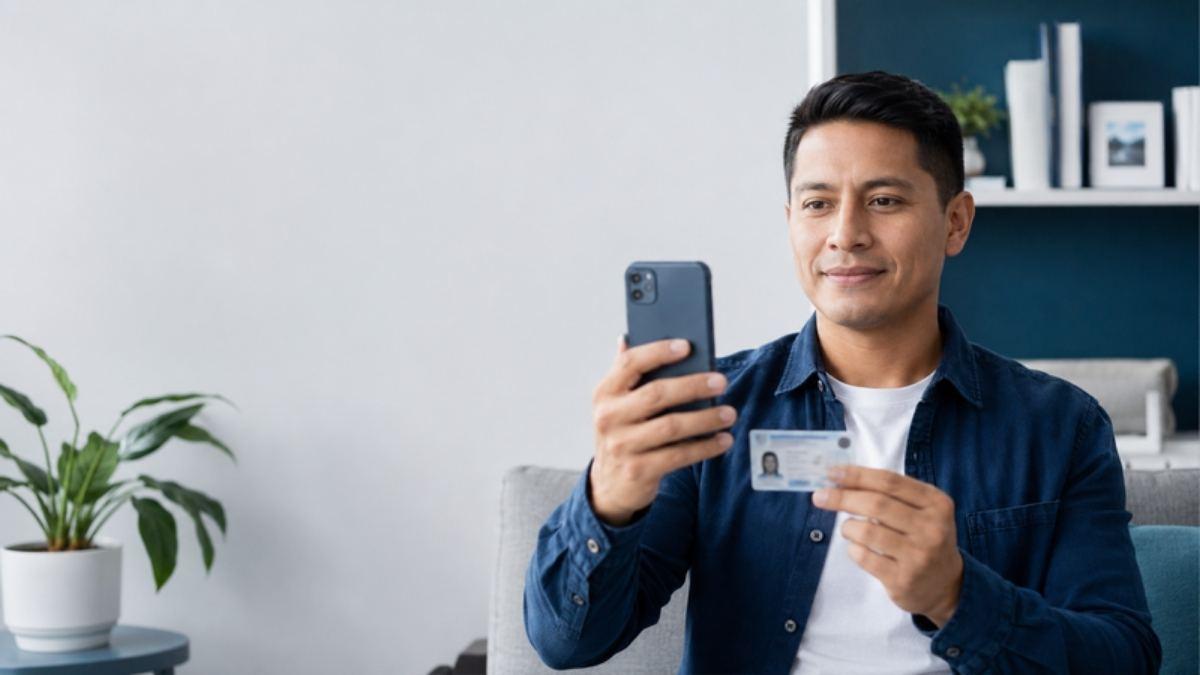
Before we start, check this out.
- Place yourself in a place with a light or a light with a light with a light and a light with a light.
- Use a simple background with no objects behind you.
- Clean your camera's lens.
- Give camera permissions to the browser or application at your request.
- Keep your original document at your hand (not a photo or photo).
- Remove cover, cap or dark lenses before facial capture.
- Check that only you appear in front of the camera.
- Be sure to have a stable internet connection.
Go straight to what you need
Collection of document
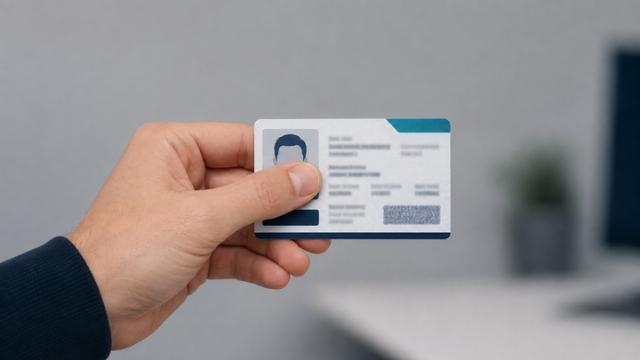
Put the document onto a flat surface and photo from the front, without tipping the camera. The document should be complete with its four corners visible and with no finger covering the data.
Passport note: capture only data page (the one that contains your photograph and the machine-readable zone). It is not necessary to photograph the front and back as with a card-type ID.
That's right
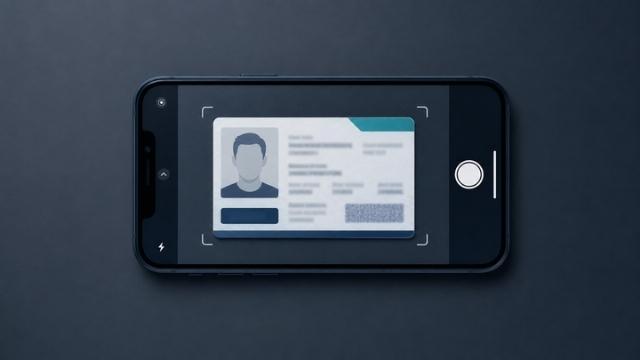
Flat and complete document
Four corners visible, without inclination, good light.
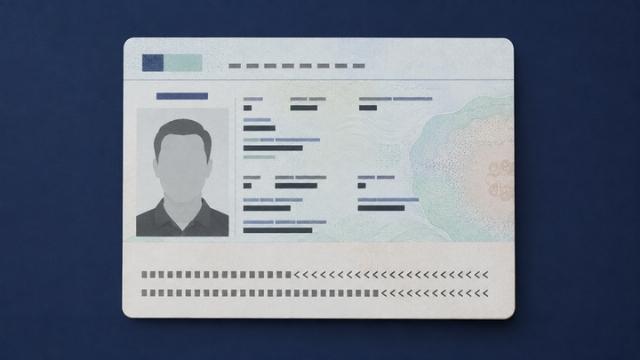
Pasaporte: página de datos
Just the page with photo and mechanical reading area.
Avoid
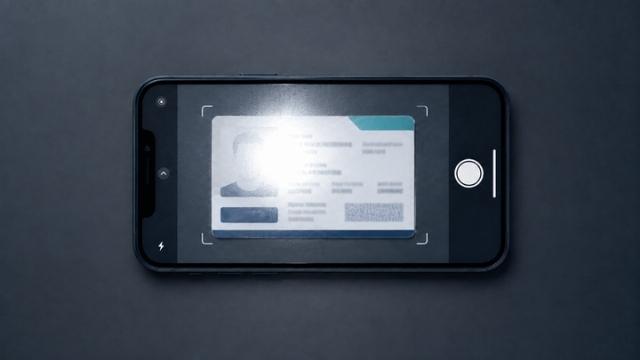
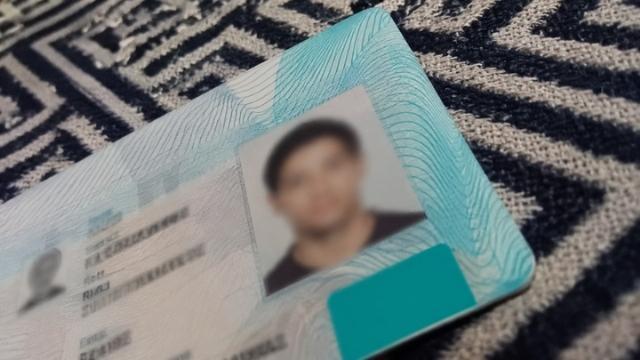
with reflection
The flash or a direct light hides data.
Obstructed
A finger or hand cover some text.
Inclined or cut
A corner or edge's missing from the frame.
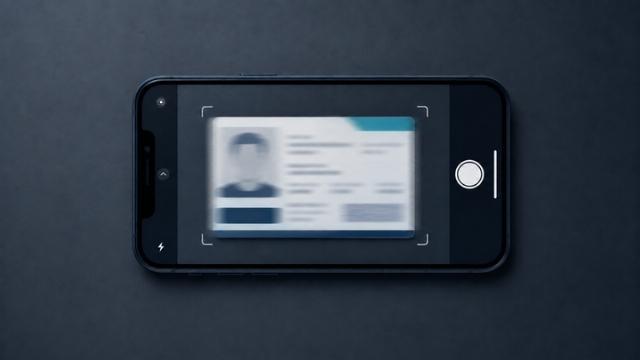
Clear
Image out of focus, usually by movement.
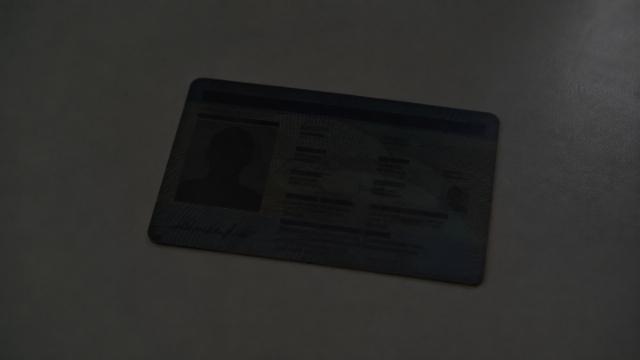
That's very dark.
A low environmental light prevents clear reading of the document.
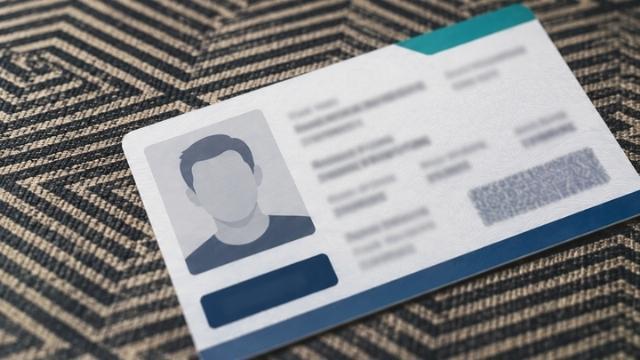
Dystractive fund
Object around makes it difficult to detect the edges of the document.
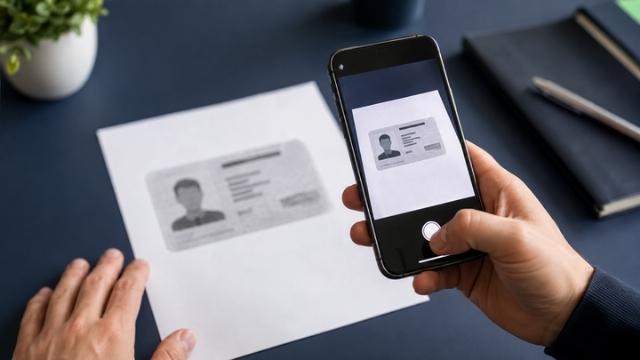
Photocopying or display
Always use the original physical document, not a copy or a screen photo.
Use the native resolution of your device's camera and avoid manually cutting or compressing the image. No fixed requirement for megapixels or format - the sharpness and legibility of the result, as well as an exact technical specification, are evaluated.
Facial capture
Fold up with the camera at eye height with a complete face visible within the frame. It can use advanced optical lenses with clear or thin frame and avoid dark, reflection or very thick frame lenses that hide the eyes or eyebrows.
That's right

Correct facial light
Unique front light with no marked shadows and no shines.
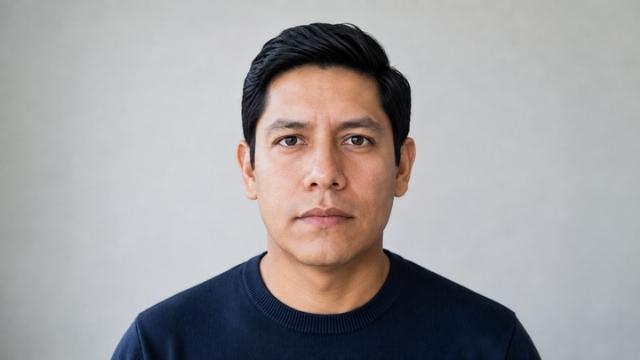
Front posture
Front face, at the height of the eyes, frame focused.
Avoid
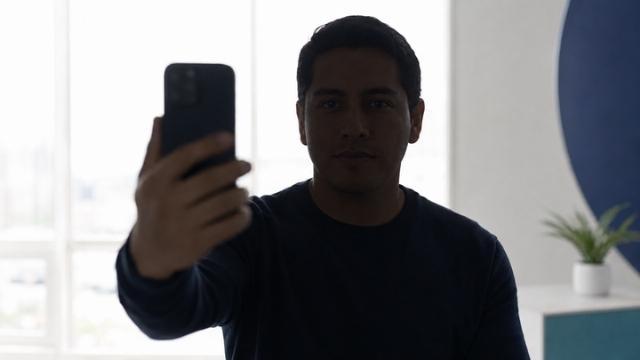
Contradude
A window or lamp back darkens his face.
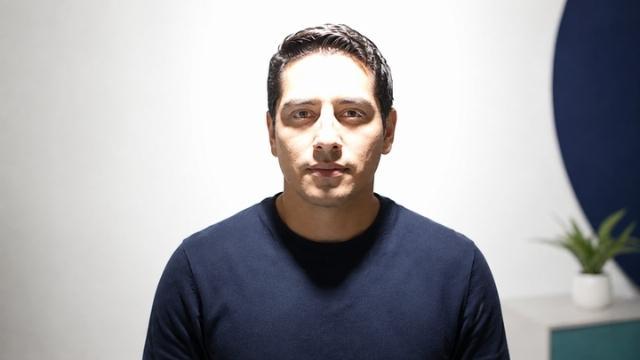
Intense light from above
Shadow under his eyes and his nose.
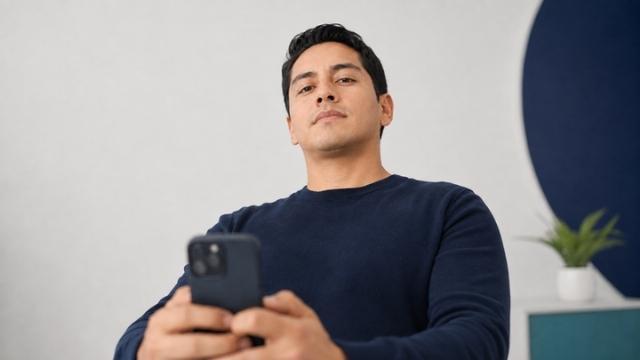
Camera from Below
Distorting his face, making recognition difficult.
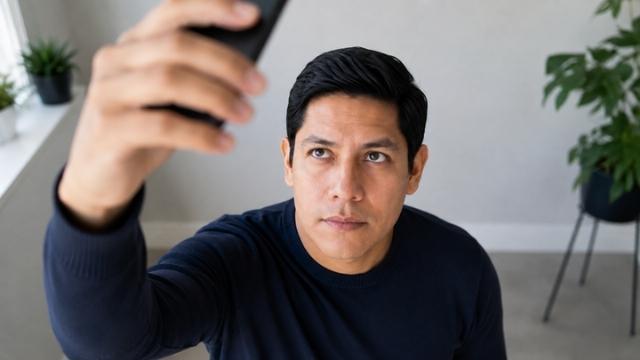
Camera from above
Also distorted face frame.
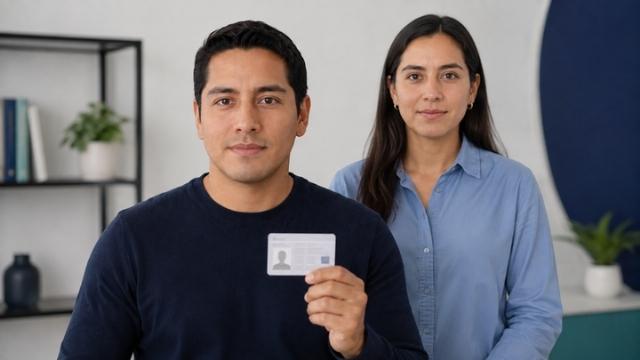
Two people
Only one person should be in the frame.
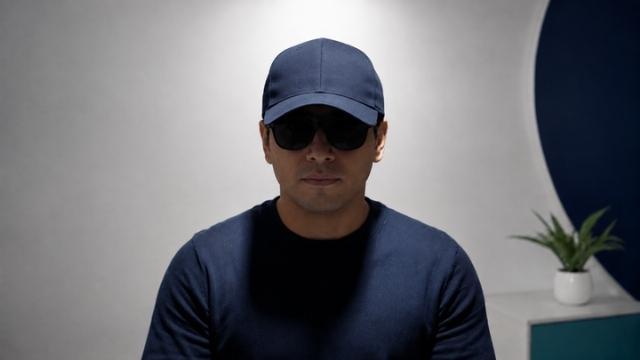
Accessories that obstruct
Cover, cap or dark lenses.
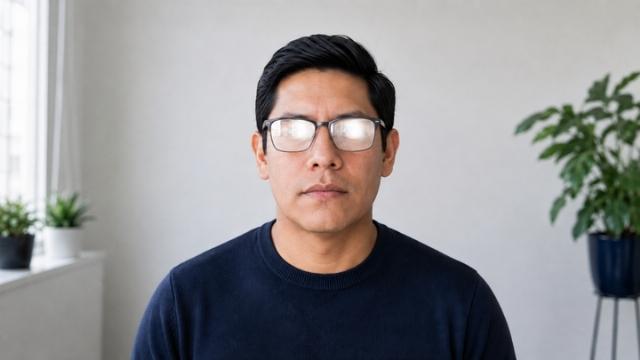
Flow lenses
The glow onto the glass keeps his eyes hidden.
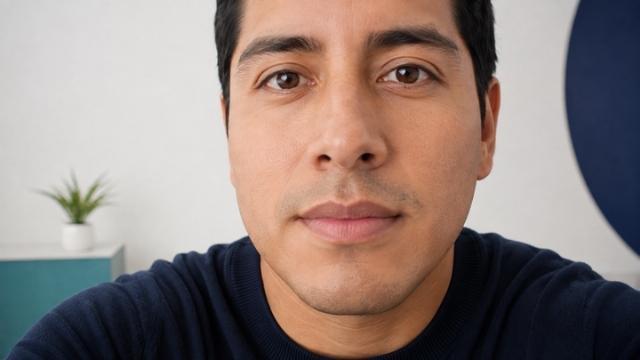
Too close
The image cuts and loses the contour.
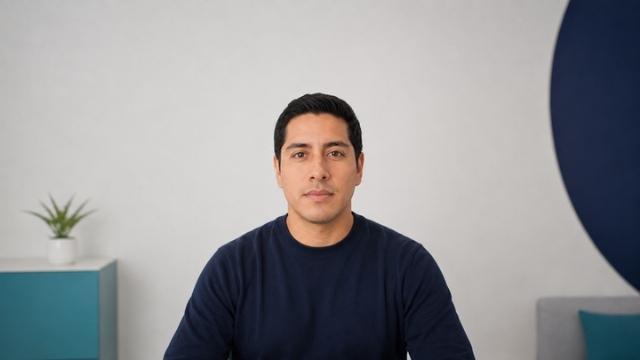
Too far
The face occupies very little framing.
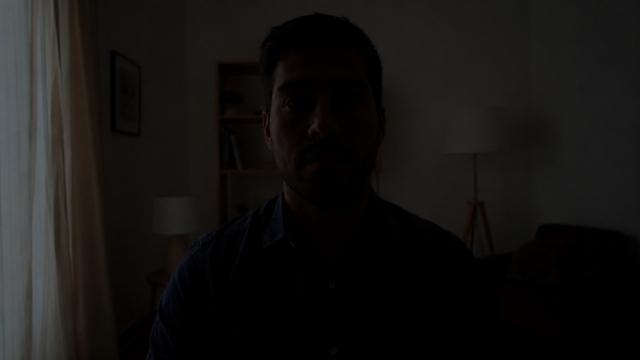
Dark atmosphere
Without sufficient light, the system doesn't distinguish the traits.

Non-front
The face should be face-to-face, not profile or turned.
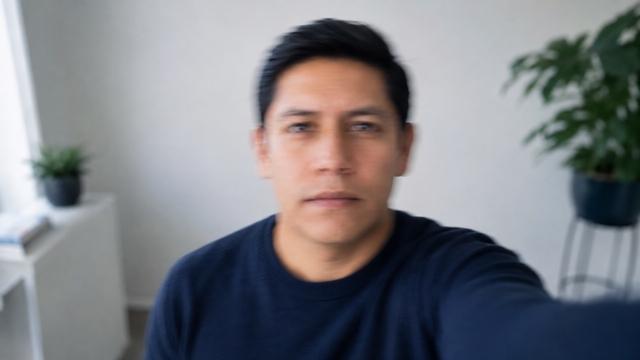
Loose movement
Keep still for the seconds of capture.
Liveness detection (liveness)
The Liveness detection confirms that whoever's in front of the camera is an actual person currently present and helps reduce the risk of suplanting with photographs, videos or masks. It's not a mechanism that completely removes the possibility of fraud. It's an additional monitoring layer within the process.
Without user actions
The system analyzes a single capture or a short video without applying for specific actions - it should only be held in front of the camera with good light and an uncovered face for a few seconds.
with an action at once
The system requests an action during capture (e. g., slightly turn the head or flash) to confirm that the response occurs in real time.
That's right
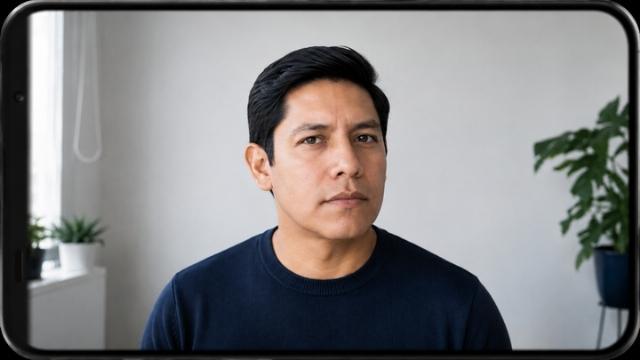
Follow the instruction as indicated
A short and controlled movement (turn and flash) is sufficient.
Avoid
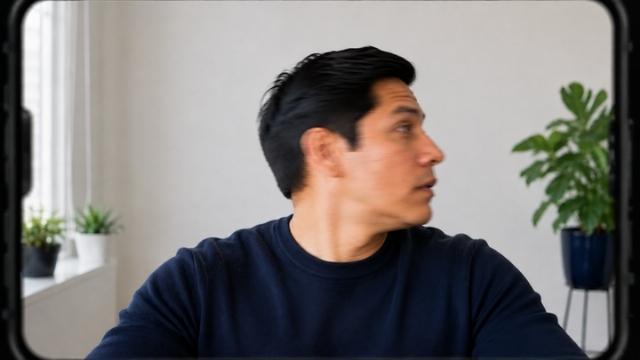
Avoid excessive movements
A very sharp or quick turn can get his face out of his frame.
) To be validated with product: if the active mode is currently available at production flow, or if today's liveness is only passive.
Why was my check rejected?
"No complete document was found"+
A framing edge or corner of document remains. Recapture and make sure that all four corners are visible.
"The image doesn't have enough quality"+
The photo is blurred or with little light. Search for a place with better light and hold the document or face firmly while catching.
"something was found covering the document."+
A finger, hand or object cover some of the data. Hold the document at the edges, outside the printed area.
"The document doesn't look original"+
The system did not confirm that this was a physical document (could be a photo from a screen or a photocopy).
"The expected safety elements have been missing"+
Check that the document is valid and that it's the original, not a damaged copy or version.
"The data aren't consistent"+
Automatic reading of the document was unable to confirm information. Repeat the capture with good light to make text legible.
"The person was not confirmed to be present in real time"+
The liveness detection cannot be validated. Repeat the process in a place with good light, looking directly at the camera, without covering his face.
Common technical challenges
The camera doesn't answer or the browser doesn't require permission+
Check that you have not previously blocked your camera permission: at Chrome and Safari, the padlock or camera icon at the steering bar allows you to re-activate it. At Android or iOS, check Adjustments → Applications / Safari → Permissions → Camera.
The camera's been used by another application+
Close other applications or tabs that may be using the camera (video calls, other scanning apps) and try again.
The page remains loaded or the meeting expires+
Check your Internet connection. If the process was initiated several minutes ago, the link or code may have expired and require a new one.
The browser isn't supported+
Use a recent version of Chrome, Safari or Edge. Very outdated scanners may be unable to support required camera access.
On mobile phone, the camera lights up or onto the wrong lens+
Search for the camera change icon inside the capture box to alternate between front and back camera.
Technical reference framework
The guide takes as its reference framework public principles from the following international standards and programs of biometrics and identities. JAAK No formal certification or audited conformity with any of them - they are referred to as a reference to good industry practice, and they are not referred to as a reproduced text of standards.
ISO/IEC 29794-5:2025A reference framework to evaluate the quality of face images used in biometrics (sharpness, illumination, framing, expression, absence of obstructions).
ISO/IEC 39794-5:2019Biometric data exchange format for face images.
ISO/IEC 24779-5:2020Requirements for reference facial portraits used for identification, such as frame and head posture.
ISO/IEC 30107-3:2023A framework for evaluating mechanisms to detect presentational attacks - a liveness detection against suplanting attempts with photos, videos or masks.
ISO/IEC 19795-1:2021General principles for evaluating biometric system performance.
NIST FATE — QualityNIST program (Face Analysis Technology Evaluation) that compares performance of facial image quality algorithms between providers.
ICAO Doc 9303Additional reference, only for passport-type photographs in mechanical reading travel documents.
FAQ
How long does it take to complete the check?+
Normally 3 to 5 minutes if document and face are properly captured at first attempt.
Can I wear lenses during face capture?+
Yes, advanced optical lenses with clear or thin frame are usually no problem. Avoid dark lenses with marked reflection or thick frame.
What documents can I use?+
Existing official identities as INE or passport (data page). The type of document accepted may vary depending on the specific process of each company.
Are my data secure during capture?+
The information is transmitted in an encrypted form and used exclusively for the identity check process as required by the company's privacy notice applying for verification.
What if my check's been rejected several times?+
Check the bug diagnosis section of this guide. If the problem persists, contact the company's support that requested the check.
The liveness detection record a video that's been saved?+
The video or catches are processed as part of an identity check and their maintenance and use are subject to the privacy notice of the specific process.
Do I need an application to complete the check?+
It depends on the flow: some processes are completed directly from the browser (web), some with a mobile application.
Do this guide apply to any checks KYCThat's what I'm talking about. JAAK?+
The principles of light, frame and image quality are widely applicable in face biometrics. The specific messages of rejection of the Diagnosis Section are related to the process of JAAK.
Do you need more help?
I'm an end user.
If you have problems with complete an identity check of an requested company, contact that company's support directly and they manage its process.
Contact Support JAAKI'm a developer or an integrator.
See the technical documentation for integrating KYC: web flows, API and SDK mobile and validation of every step.
Video guide to proper use
We are currently preparing an orientation video that sums up this step by step guide.
Orientation video with right use Coming
It will be available on this same page when published.